AI Remover — Remove Any Object, Person, or Text
Describe what you want gone and the AI rebuilds what was behind it. Free, no watermark — works in your browser, nothing to install.
What an AI remover actually does
An AI remover doesn't paint over what you want gone — it rebuilds what should be behind it. When you ask the AI to remove a trash can, a passer-by, or a date stamp, the model reads the surrounding pixels (the wall, the pavement, the sky) and generates new ones that continue the texture, light and perspective of the original shot. Nothing is blurred, smudged or cloned from elsewhere in the frame, which is why the result holds up when you zoom in.
That's the difference between an AI remover and the eraser you already have. A traditional eraser leaves a flat patch of neighbouring colour; a content-aware clone repeats texture and breaks on curves, shadows and repeating patterns. Inpainting predicts the missing region instead, so a railing continues where it should and a shadow keeps its direction.
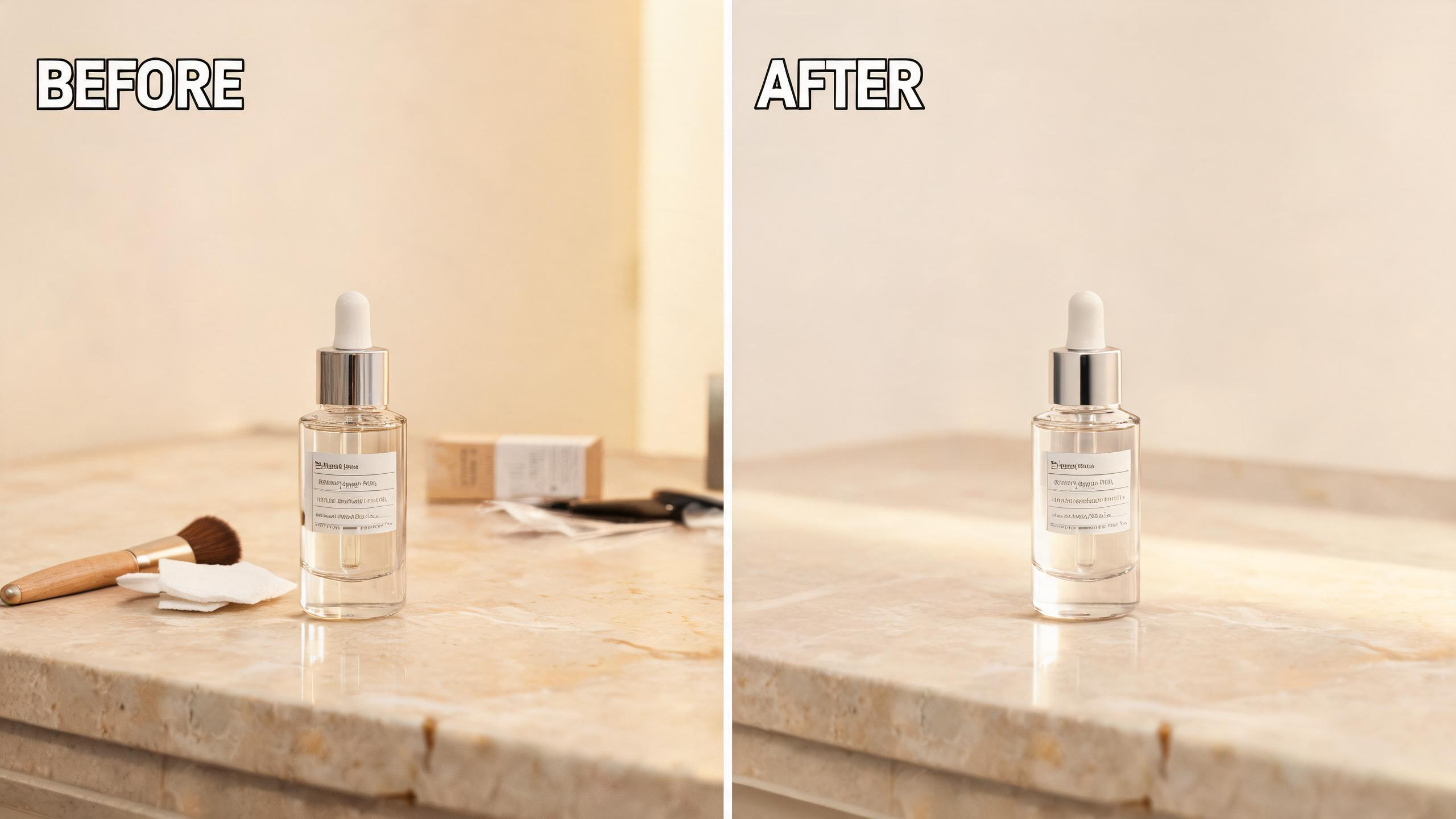
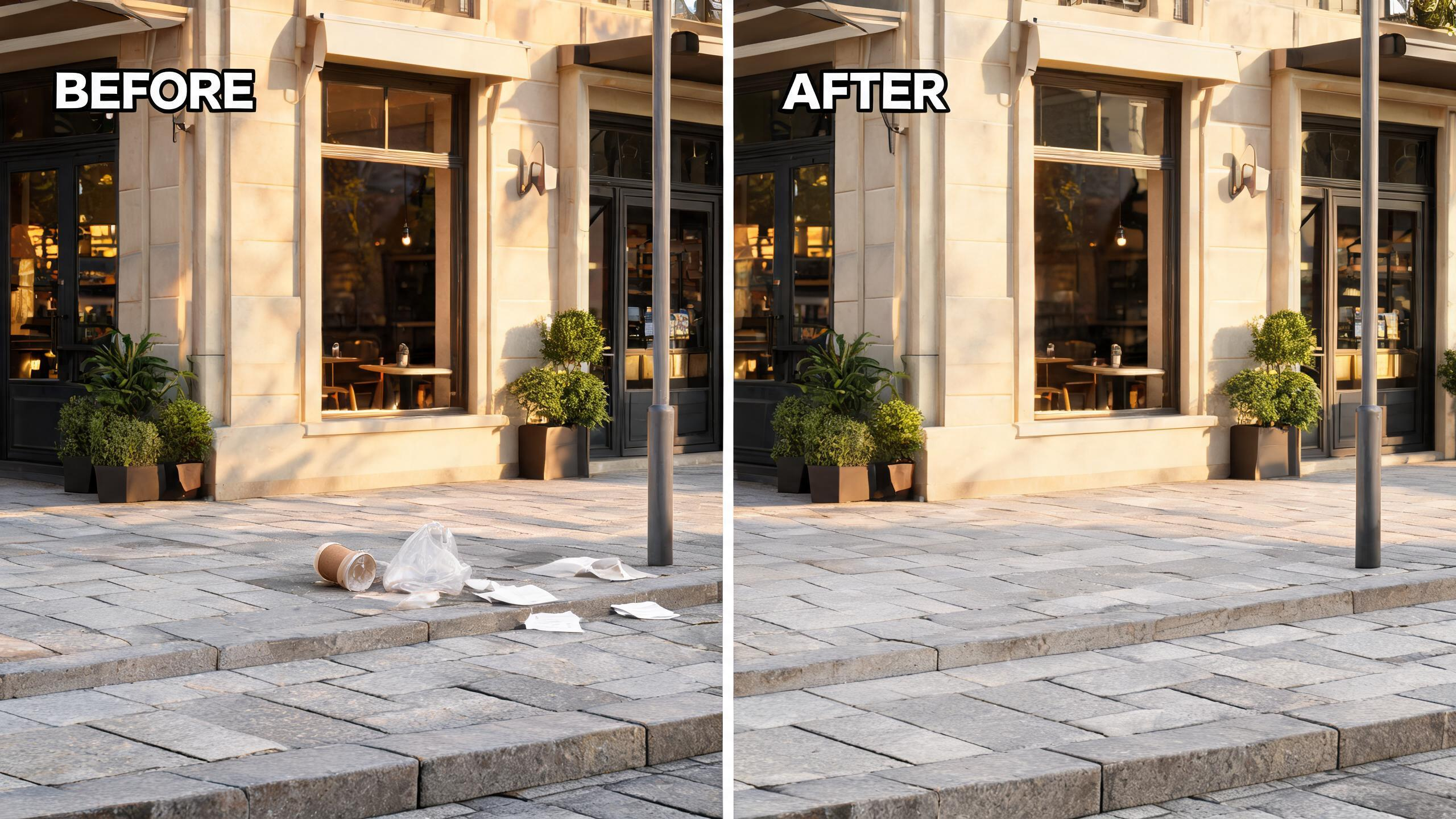
Use it for anything that doesn't belong in the frame: clutter on a table, a power line across a sky, a stranger in the back of a travel photo, a price tag on a product shot, or a caption burned into a screenshot.
Pick what you need to remove
Remove an object
Cables, bins, signs, parked cars, dropped gear. The AI rebuilds the surface behind them.
Remove people from the background
Photobombers, tourists, crowds and pedestrians, while your subject stays untouched.
Remove text from an image
Captions, date stamps, subtitles, meme typography and burned-in labels.
Remove a watermark
© marks, corner signatures and overlays on images you own or have the right to edit.
Remove a sticker or emoji
Instagram stickers, Snapchat overlays, emoji reactions and censor bars from screenshots and memes.
Not a photo? Then a different tool will help
"AI remover" gets searched for three completely different jobs. This page is the picture one — it erases things that are visible in an image. If that isn't what you came for, here's an honest map of the other two.
Removing AI text, AI detection, or a "humanizer" pass
You want text rewritten so a detector stops flagging it — that's a language task, not an image task. No photo editor can do it, this one included. Tools in that space are AI humanizers; search for one of those rather than an image remover.
Removing the "AI generated" label or AI metadata
If a platform put a "Made with AI" or "AI info" badge on your upload, the flag usually lives in the file's hidden metadata (C2PA, XMP, EXIF), not in the pixels. Erasing part of the picture won't remove it — you need a metadata cleaner, which is a separate tool from this one.
Removing burned-in subtitles from a video
Subtitles, captions and timestamps baked into an MP4 aren't in a still frame. That needs a video tool.
How to remove something from a photo
Upload your photo
Drop in a JPG, PNG or WebP. Large files are scaled down to keep processing fast.
Describe what should disappear
Tell the AI exactly what to remove and what the background looks like. For example, "remove the red trash can next to the bench". The more specific you are, the cleaner the rebuild.
Download the result
The AI returns a clean image in seconds. You can download it from your My Assets page.
Real removals — same photo, nothing retouched
Six picks from the removals people actually run. Every pair below is the same file in and out — no resize, no crop, no touch-up after.
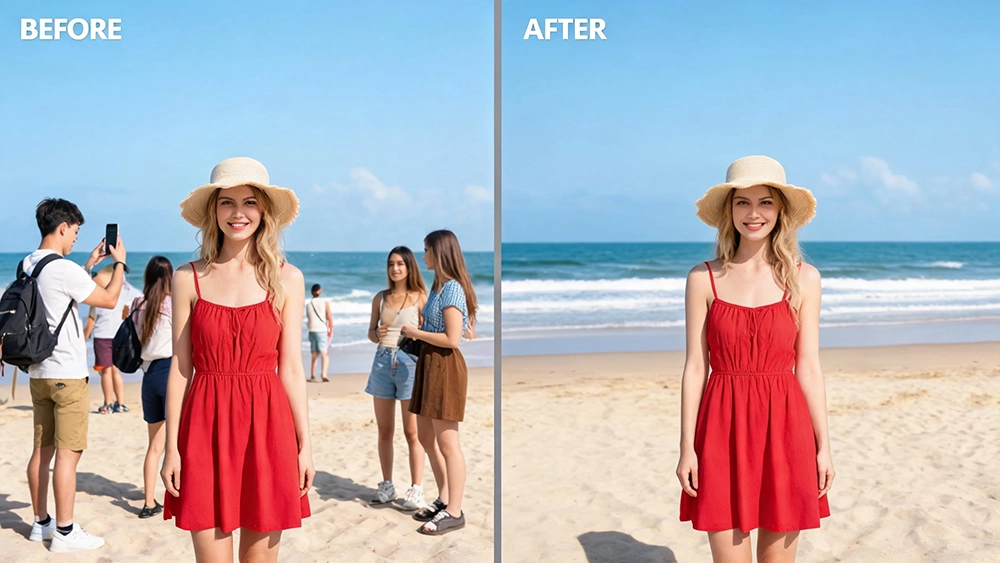
Six tourists, one photo
Brushed over six people standing in front of a temple. Each was rebuilt separately, so two people standing shoulder to shoulder didn't merge into one smeared patch.
Six tourists, one photo — each rebuilt separately.
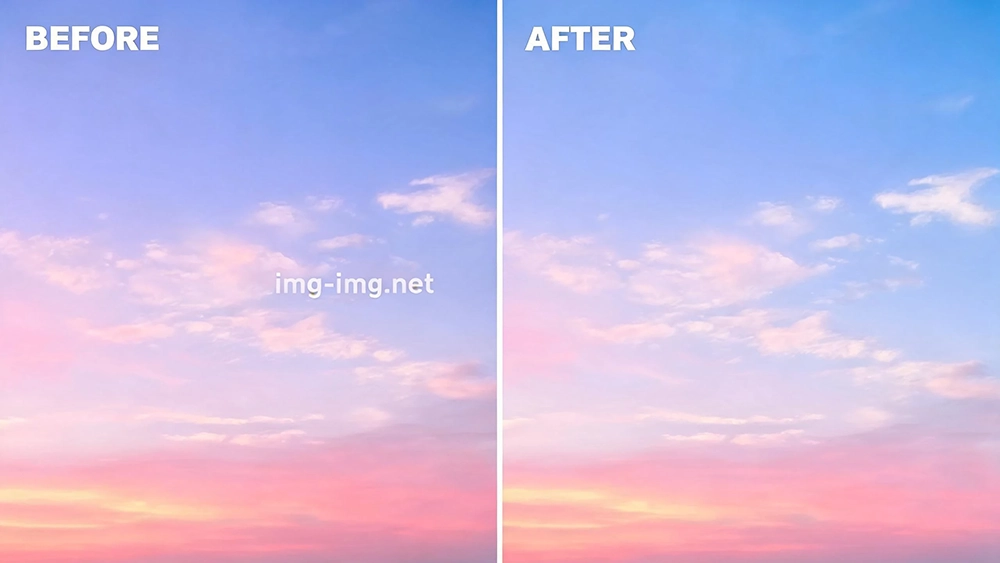
A watermark across a gradient sky
Gradients are the hard case — any seam or blur shows instantly against a smooth sky. One pass, and the gradient runs unbroken from edge to edge.
A watermark on a gradient is the hard case. No seam.
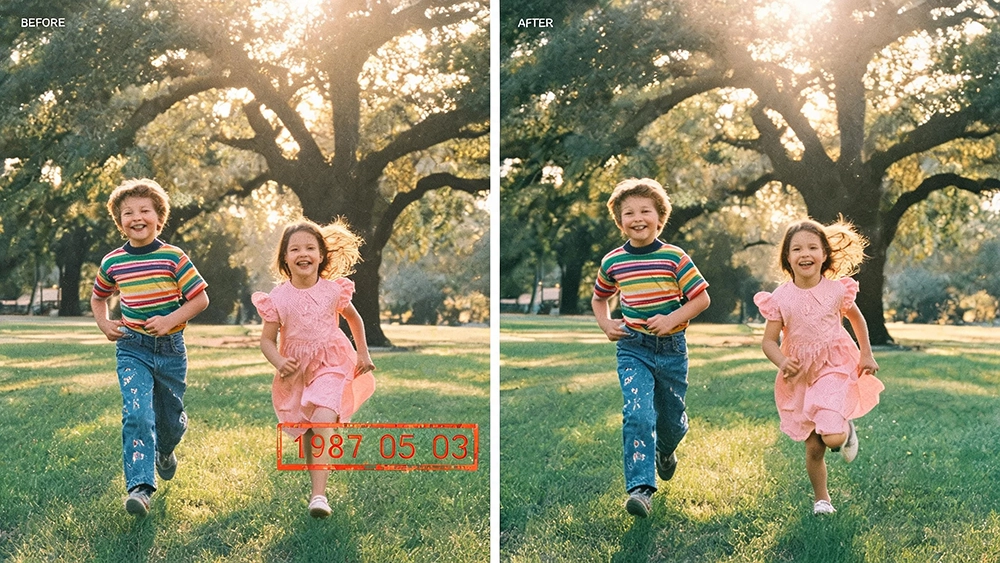
A date stamp on an old print
The orange stamp sat on top of paper grain and a crease. Both came back — the grain matches the surrounding paper instead of turning into a flat patch.
Stamp, paper grain and crease all came back.
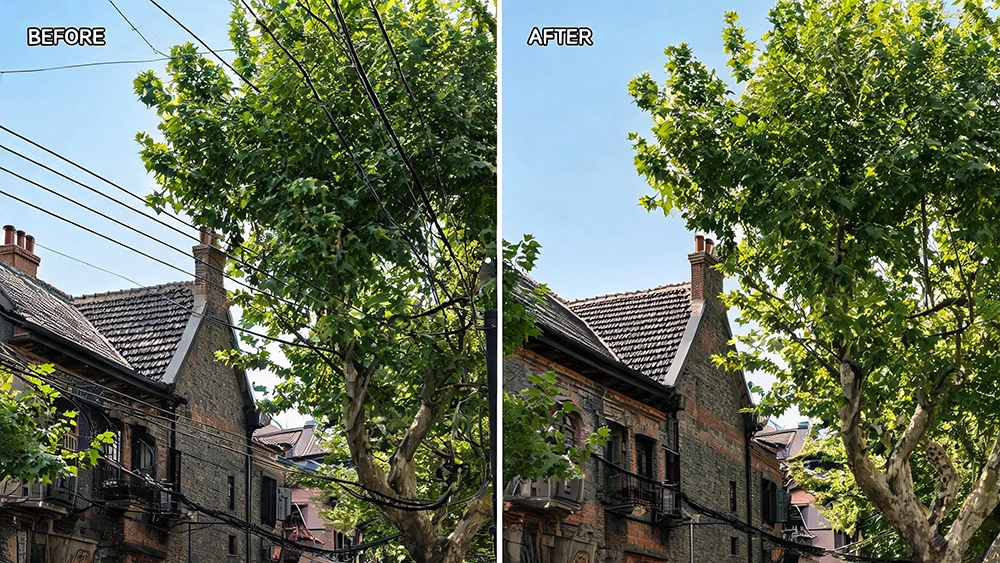
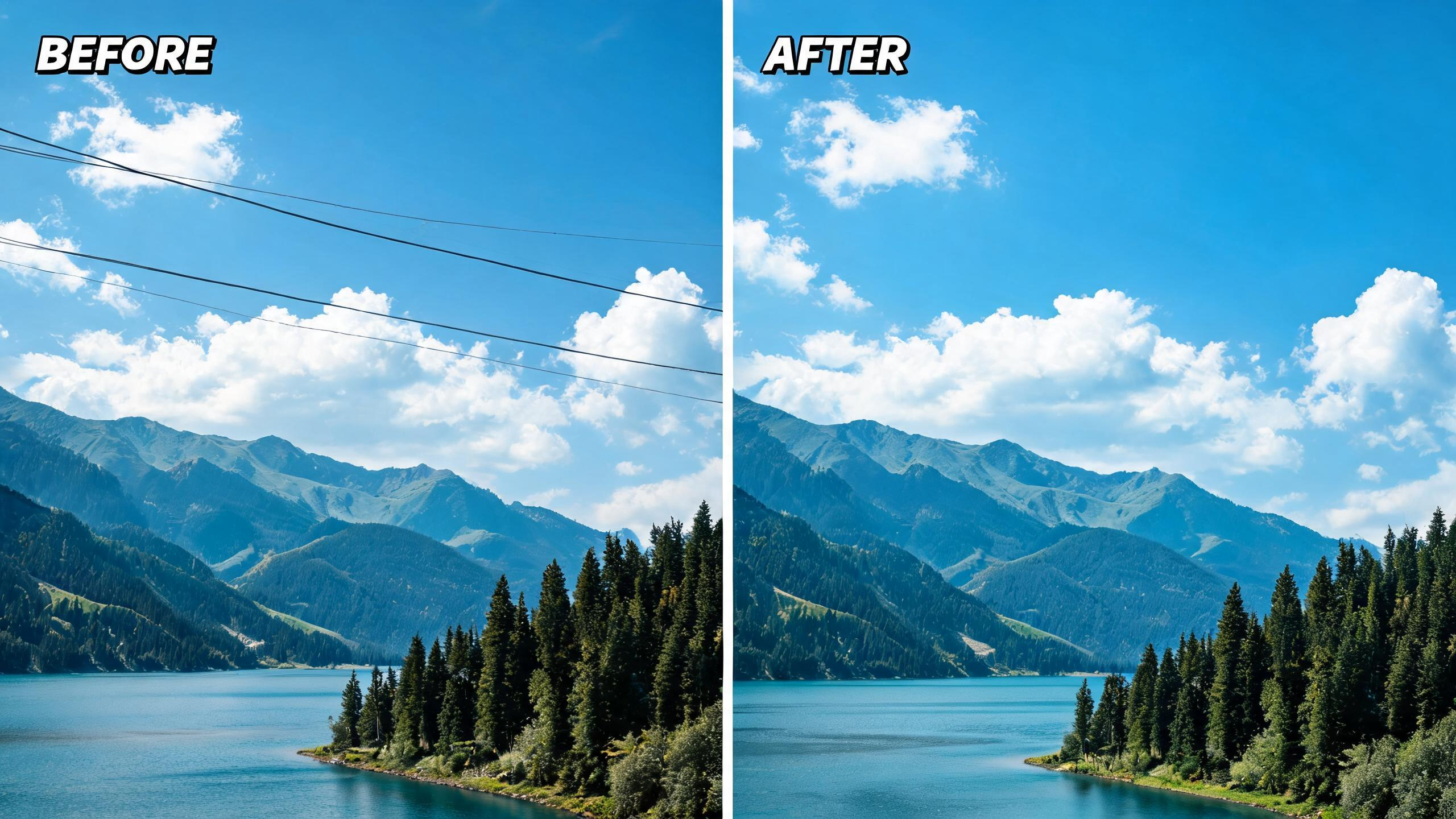
A power line across the sky
A thin diagonal line is where fill-ins leave ghosts. Gone, with the cloud edges either side of it intact.
A one-pixel-wide line, with the clouds either side intact.
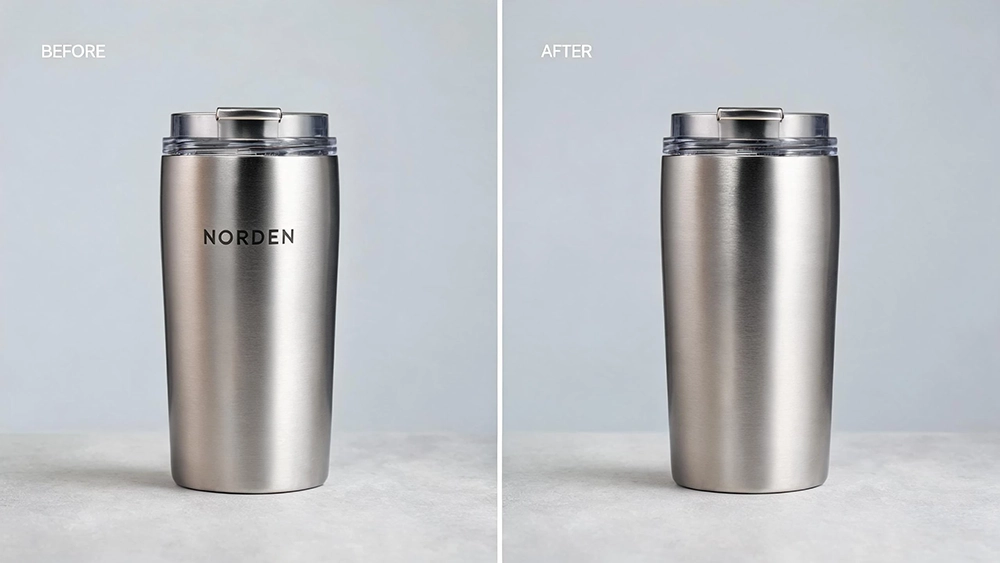
A logo on a product shot
Silk-screen print on fabric. Removed without smearing the weave underneath.
Silk screen on fabric, without smearing the weave.
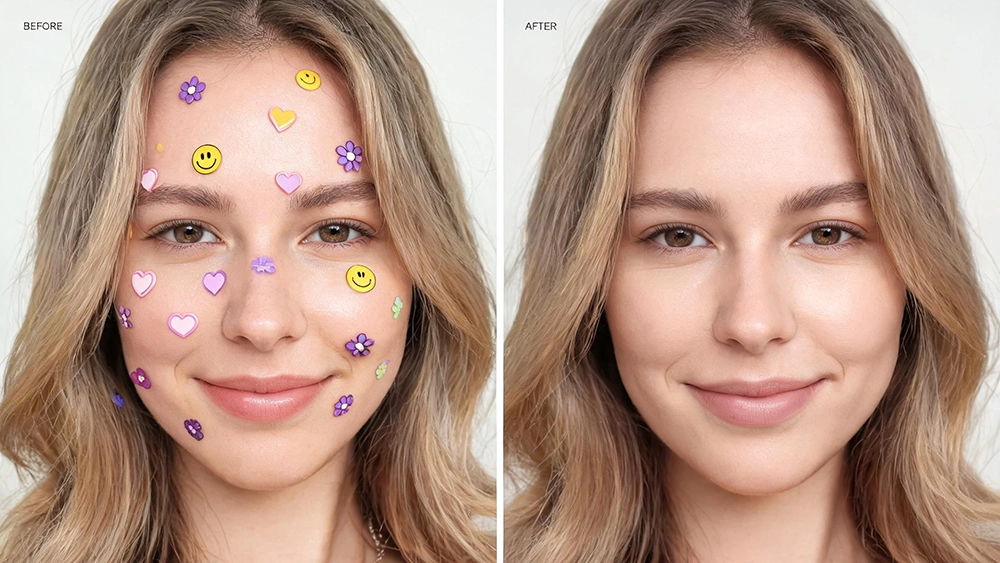
A sticker over someone's face
The sticker covered an eye and the top of a cheek. Both reconstructed — this is the case where a soft fill would look obviously wrong.
An eye and a cheek reconstructed, not blurred over.
Why people use img-img's AI remover
No app, no install
Runs in the browser on iPhone, Android and desktop. No download, no App Store, no permissions.
Free without a watermark
Start free — no signup needed. The result you download carries nothing from us.
It rebuilds the background instead of blurring it
The model generates new pixels for the area you describe, continuing texture, light direction and perspective. Zoom in and the wall is still a wall.
Privacy built in
Your photo is processed on our servers and deleted after processing. Anonymous results expire in 7 days.
AI remover vs. the other ways to do it
| Feature | Phone built-in eraser | Photoshop clone / content-aware | Free online removers | This page |
|---|---|---|---|---|
| Learning curve | None | High, paid | Low | None |
| Result quality | Basic, blurs edges | Best | Varies | High (rebuilds context) |
| Free | Depends on device | No | Limited / lowers res | Yes, daily credits |
| No app install | Yes (only that phone) | No | Yes | Yes |
Where it still struggles
- Anything covering more than about a third of the frame. The model needs surrounding context to reconstruct from.
- Very large flat areas. Half a sky or an entire field can come back slightly uneven.
- Hair, glass and translucent edges. Fine strands and see-through objects are the hardest case for any inpainting model.
- Dense text. A caption or a date stamp is fine; a page of body copy will leave artifacts.
- Busy, warped backgrounds. Heavy perspective or repeating patterns (tiles, fences, crowds) can show seams.
- Vague descriptions. If you just say "remove it," the AI might not know exactly what to target. Be specific about the object and its location.
Tips for a cleaner result
- Be specific about the object and its location. Name it and say where it is.
- Describe the background. Tell the AI what should be behind it.
- Remove in passes. If the scene is crowded, ask to remove one person at a time.
- Test on a small area first when the background is complex.
- Crop before you upload if the object sits in a busy corner and you need full resolution.
What people use it for
Marketplace and Etsy listings
Clearing clutter and personal items out of product photos.
Rental and real-estate shots
Removing personal belongings, cables, and trash bins from interior photos.
Travel photos
Taking out tourists, passers-by, and photobombers from your scenic shots.
Screenshots
Removing stickers, badges, and overlay text from images you saved.
Old family photos
Erasing date stamps and camera timestamps to restore the original scene.
Frequently Asked Questions
How does an AI remover work?
Is it really free?
What can I remove?
What file formats are supported?
Does it work on mobile?
Do I need an account?
Why does the result look blurry sometimes?
Can I remove multiple objects at once?
How long are my images stored?
Do you use my images for training?
Can it remove the "AI generated" label from an image?
Can it rewrite AI-written text so a detector won't flag it?
Try it on one photo
Free, no signup, no watermark. Pick a photo and see what comes back.
Want to restyle it instead? Try Image to Image →